Tools used in this post
Merging PDFs is one of those quiet, everyday tasks that almost every knowledge worker performs. Students combine research chapters; freelancers assemble portfolios; accountants staple invoices to receipts; job seekers bundle a résumé with a cover letter and references. It sounds harmless. The problem is how most people do it: by uploading confidential documents to a random "free online PDF merger" that routes those files through servers they will never see.
If the documents were vacation photos, that would be fine. But merging bank statements, medical records, signed contracts, or tax forms means handing sensitive personal data to an unknown third party. This guide explains why that is riskier than it looks, and how to merge PDFs with the same convenience but none of the exposure — using tools that never send your files anywhere.
How traditional online PDF tools actually work
When you drop a PDF into a typical cloud-based merger, your file goes on a journey most tools never disclose:
- Upload transmission. Your document travels across the public internet to a third-party server. Even over HTTPS, it now exists somewhere outside your control.
- Remote storage. The server writes your file to disk to process it. For a few seconds or a few hours, a complete copy of your confidential document sits on hardware you do not own.
- Retention windows. Many "free" services keep uploaded files for a set period — sometimes an hour, sometimes a day — before automated cleanup scripts run. Some keep logs even longer.
Every one of those stages is an opportunity for exposure. A misconfigured storage bucket, a breach, an over-broad privacy policy, or a subpoena can turn "I just merged two PDFs" into a data-leak headline.
The hidden costs of "free" server-side tools
Free tools are rarely free in the way you assume. Running upload infrastructure costs money, and that cost is often recovered through:
- Data monetization: aggregating or analyzing what passes through the service.
- Aggressive advertising and tracking attached to your session.
- Upsells that gate basic features behind a subscription once you have already uploaded.
None of that is inherently malicious, but it means your document — and your attention — is the product. For anything confidential, that trade is a bad deal.
The safer alternative: client-side browser processing
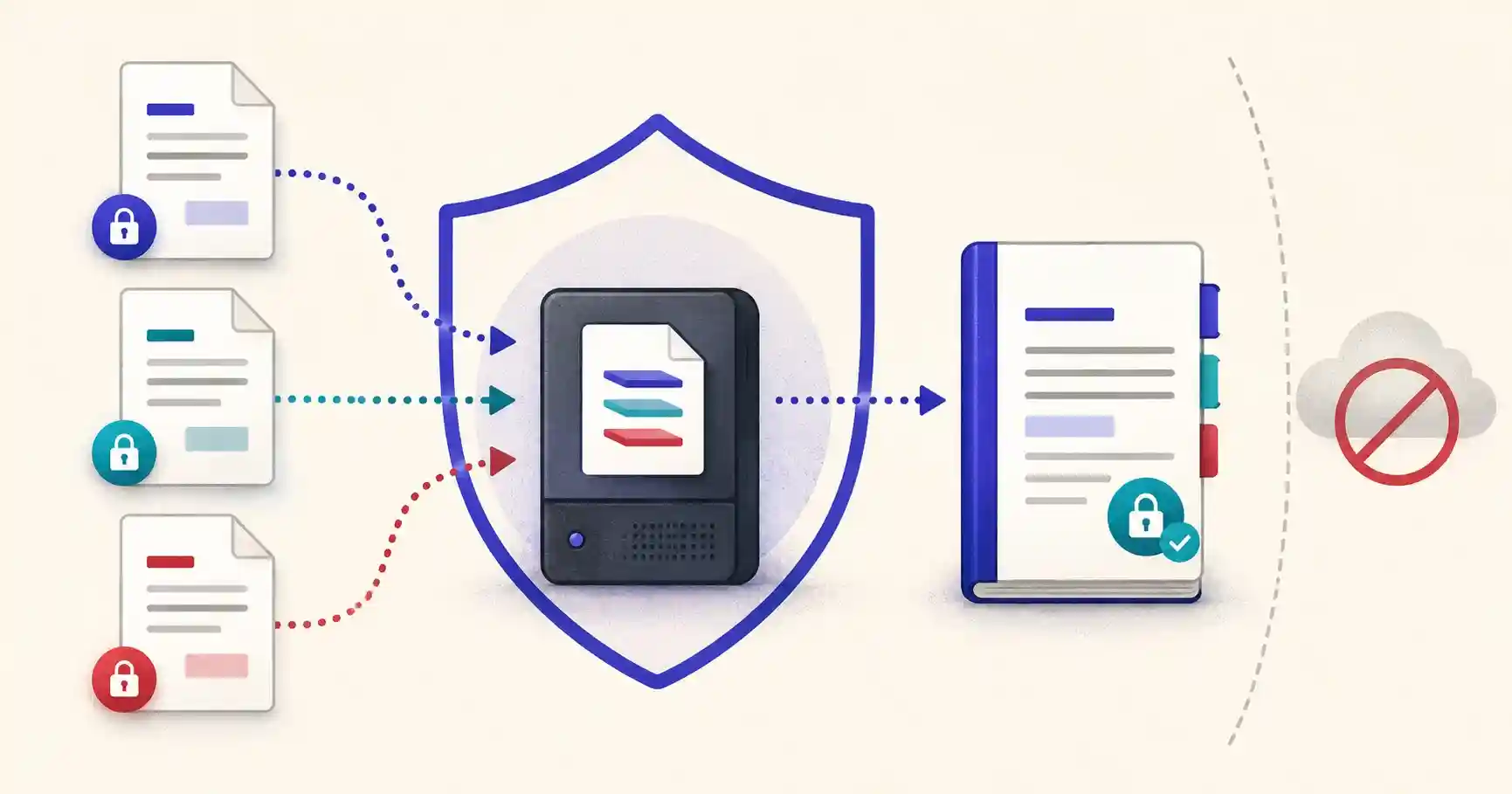
Modern browsers are far more capable than they were a decade ago. Thanks to WebAssembly and modern JavaScript, a browser can open, parse, reorder, and re-save PDF files entirely on your own device. The document is loaded into your browser's memory, manipulated locally, and written back out — without a single byte being transmitted to a server.
The benefits are concrete:
- Your documents never leave your computer. There is no upload, so there is nothing to intercept, store, or leak.
- It is faster. You skip the upload-wait-download round trip; merging happens as fast as your device can process it.
- It works offline. Once the page has loaded, you can disconnect from the internet and it still works.
- It scales to sensitive workflows. Legal, medical, and financial documents can be combined without violating confidentiality expectations.
A step-by-step guide to merging PDFs safely
Step 1 — Gather and prepare your documents
Collect every PDF you want to combine into one folder. Confirm none of them are password-protected; encrypted files must be unlocked before they can be merged. If some files contain pages you do not need, trim them first (see splitting, below) so your final document stays lean.
Step 2 — Arrange the page order
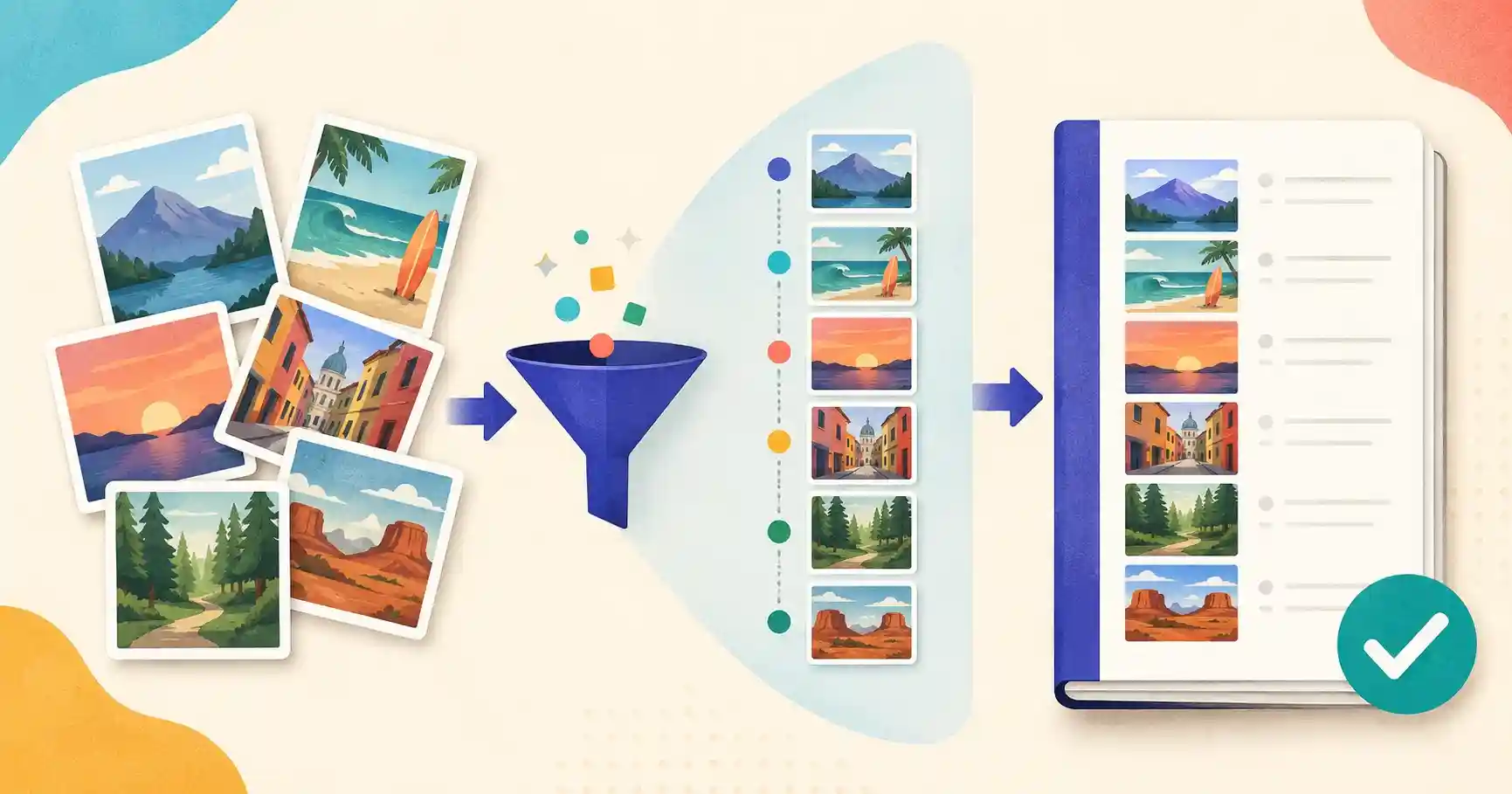
Load your files into a browser-based merger and drag them into the exact sequence you want. Order matters more than people expect: a hiring manager reading a bundle top-to-bottom should hit your résumé before your references, not after. Preview the arrangement before you commit.
Step 3 — Combine and download
Click merge. The browser engine stitches the document structures together locally and generates a single unified PDF, ready to download instantly. Because nothing was uploaded, the moment you close the tab, no trace remains on any server.
When to merge, split, or compress
Merging is one part of a small toolkit for managing PDFs:
- Merge when you need several documents to travel and print as one.
- Split when a single large PDF contains pages you want to extract or send separately.
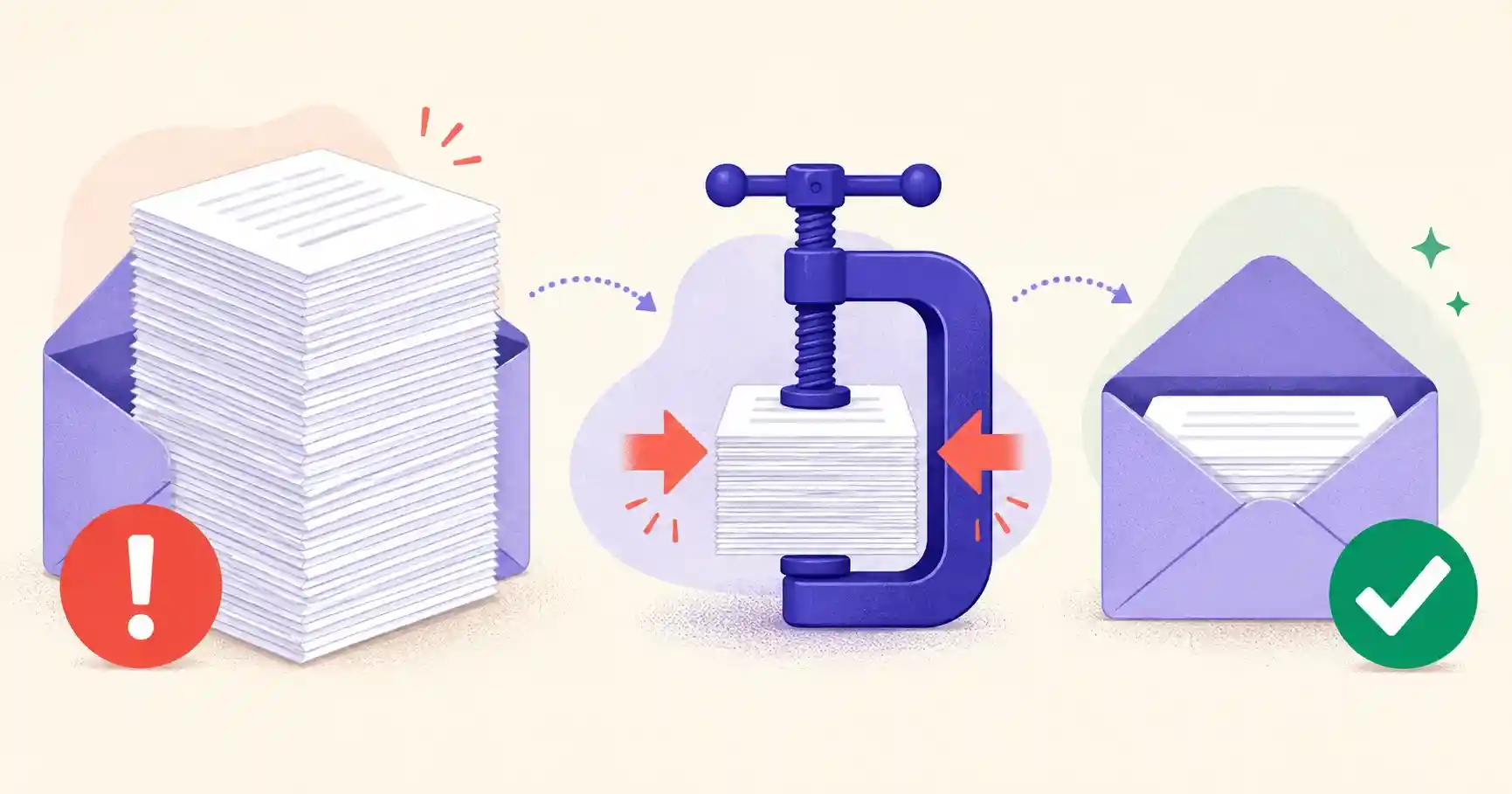
- Compress when the merged result is too large to email — combining several image-heavy PDFs can quickly exceed attachment limits.
Using all three together — split out what you need, merge it in order, then compress to size — covers the vast majority of document-assembly tasks.
Merge your PDF files privately
Combine, organize, and manage documents without ever risking your data. The tools below run fully client-side in your browser.
Combine PDFs Without the Privacy Risk
Assemble professional documents 100% privately — nothing is uploaded:
- 📎 PDF Merger: Combine multiple PDF documents into one organized file, entirely in your browser.
- ✂️ PDF Splitter: Extract specific page ranges or break a large PDF into separate files.
- 🗜️ PDF Compressor: Reduce the file size of the merged document for easy email delivery.
🔒 100% data protection: OomTools operates fully client-side. Your documents are never uploaded, tracked, or stored on external servers.
Real-world scenarios where private merging matters
The privacy argument stops being abstract the moment you consider what people actually merge. A freelancer assembling an invoice, a signed contract, and a scope document is combining financial and legal records tied to a named client. A patient collecting lab results, referral letters, and insurance forms is handling protected health information. A job seeker bundling a résumé, transcripts, and identity documents is packaging exactly the data identity thieves prize. In each case, "just uploading it to a free merger" quietly exposes documents that carry real consequences if leaked. Client-side processing removes that exposure entirely because there is no upload to leak.
What "client-side" really means for your data
It is worth being precise about the guarantee. When a tool is genuinely client-side, the JavaScript that merges your PDFs is downloaded to your browser once, and from then on the actual documents are read from your device's memory, combined locally, and written back out — all without a network request carrying your file. You can verify this yourself: open your browser's network tab, merge a document, and watch that no upload occurs. You can even disconnect from the internet after the page loads and the merge still works. That is the difference between a tool that processes your data and a service that collects it.
Preparing documents before you merge
A little preparation produces a cleaner final PDF:
- Unlock protected files first. Encrypted PDFs cannot be combined until their password is removed, so handle that before merging.
- Trim unneeded pages. If a source document has a cover sheet or blank pages you do not want in the final bundle, split them out first so the merged file stays lean.
- Decide the order deliberately. Think about how the recipient will read the document top to bottom, and arrange the files accordingly before you combine.
- Name the output clearly. A descriptive filename like
Smith-Contract-Bundle-2026.pdfis far more useful to the recipient thanmerged (3).pdf.
When you might still need a desktop app
Client-side web tools cover the overwhelming majority of merging needs, but there are edges where dedicated desktop software still earns its place: batch-processing hundreds of files through an automated pipeline, applying digital signatures with a hardware token, or working with specialized PDF/A archival requirements. For everyday combining, splitting, and compressing, though, a browser-based tool is faster to reach, requires no installation, and keeps your data on your machine — which is exactly what most people want.
Key takeaways
- Most "free" online mergers upload your files to a server, creating avoidable exposure.
- Client-side tools combine PDFs in your browser, so documents never leave your device.
- Unlock protected files and trim unneeded pages before merging for a cleaner result.
- Order pages deliberately for how the recipient will read them, and name the output clearly.
- For confidential records — financial, legal, medical — client-side merging is the only safe choice.
Frequently asked questions
Is it safe to merge tax documents using online PDF tools?
Only if the tool processes files locally in your browser. Never upload tax forms, IDs, or financial records to a service that requires a server upload — you lose control of the file the moment it leaves your device.
Can I merge PDF files on mobile devices?
Yes. Client-side web tools run in mobile browsers (Safari and Chrome) on iOS and Android with no app to install. The whole process happens on your phone.
Will merging change the quality of my PDFs?
No. Merging combines the existing page structures without re-rendering them, so text stays sharp and vector graphics remain crisp. Quality only changes if you separately choose to compress the result.
How many PDFs can I merge at once?
Client-side tools are limited mainly by your device's memory rather than an artificial server cap, so combining dozens of typical documents is no problem on a modern phone or laptop.