Tools used in this post
Sending someone a pile of loose .jpg files is the digital equivalent of handing them a shoebox of unsorted receipts. Whether you are submitting expense claims, turning in scanned homework, delivering a photo portfolio, or filing an insurance claim, individual image attachments are messy, easy to lose, and frankly unprofessional. Files download out of order, get separated from the email, or trip spam filters that dislike lots of attachments.
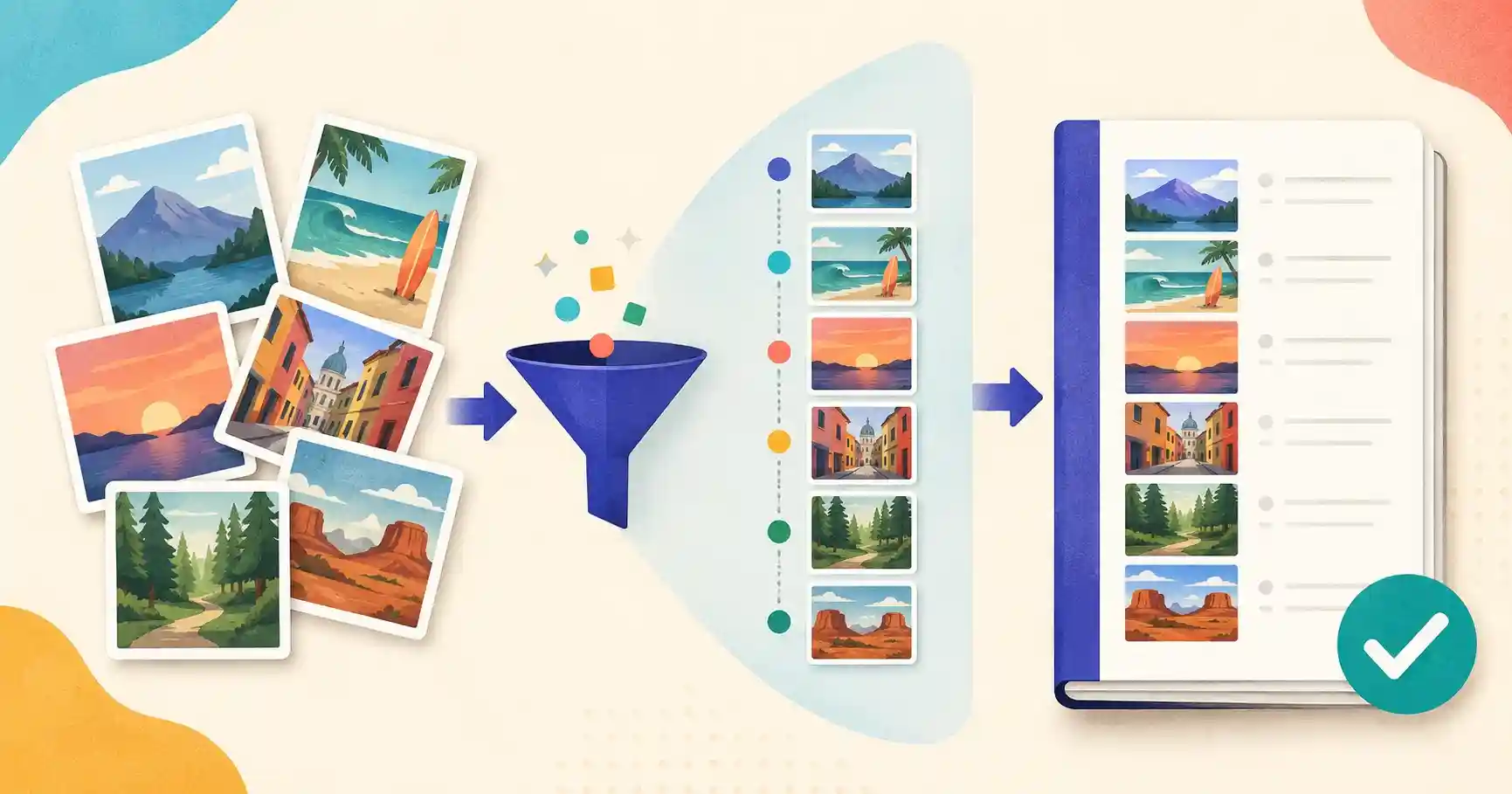
Bundling those images into a single, well-ordered PDF solves all of it at once. The recipient gets one clean document that opens identically on any device, prints in a single click, and keeps your pages in exactly the sequence you intended. This guide explains why PDF is the right container for image collections and how to build one in seconds — without uploading anything.
Why convert JPGs to PDF in the first place?
A PDF is not just a wrapper; it fixes several real problems that loose images create:
- All-in-one organization. Instead of attaching 15 separate receipt photos, you send one neat 15-page document. Nothing gets detached or lost.
- Consistent formatting. PDFs render identically on Windows, macOS, iOS, Android, and Linux. No more images that rotate unexpectedly or display at wildly different sizes on the recipient's screen.
- Effortless printing. A recipient can print an entire multi-page PDF in one action, rather than opening and printing each photo individually.
- Standardized pages. You can force mix-and-match photo sizes into uniform A4 or US Letter pages with consistent margins, which looks far more polished for anything official.
- A single, searchable record. One dated PDF is easier to file, archive, and find later than a scatter of
IMG_4821.jpgfiles.
Real-world situations where this matters
- Expense reports: combine a month of receipt photos into one document for accounting.
- Academic submissions: turn photographed handwritten pages into a single homework PDF a professor can annotate.
- Job applications: merge a scanned certificate, ID, and reference letter into one attachment.
- Home admin: bundle warranty photos, damage documentation, or a set of ID scans for an application.
- Creative delivery: hand a client a paginated PDF proof instead of a folder of JPGs.
Step-by-step: turn photos into a multi-page PDF
Step 1 — Gather and rename your images
Put every JPG into a single folder. Then rename them numerically — Receipt_01.jpg, Receipt_02.jpg, Receipt_03.jpg — so they load in the correct sequence. This tiny habit saves you re-ordering later, because most tools import files alphabetically. If your photos came from a phone, they may already sort correctly by timestamp, but explicit numbering removes all doubt.
Step 2 — Choose orientation and margins
Decide whether the document should be portrait (typical for receipts and documents) or landscape (better for wide photos and screenshots). If the PDF is destined for printing, add page margins so nothing important sits at the very edge where a printer might clip it. For a purely digital document, you can run the images edge-to-edge.
Step 3 — Convert and export
Load your ordered images into a browser-based converter, confirm the sequence in the preview, and export. The tool wraps each image onto its own page and stitches them into one PDF — no upload, no waiting, no account.
Getting the order and orientation exactly right
Even with careful naming, you will occasionally need to fix the sequence after conversion — maybe a receipt was photographed sideways, or two pages belong in the opposite order. Rather than starting over, use a page-organizer tool to drag pages into place, rotate a sideways scan upright, or delete a duplicate. This turns a rough first pass into a polished final document in seconds.
Does converting to PDF increase file size?
Converting an image to PDF simply wraps the existing image data inside a PDF container, so the size stays roughly the same as the sum of your original photos. If the source images are large, the resulting PDF will be large too — which matters when you plan to email it. In that case, compress the images first (or compress the finished PDF) so the final document lands under your email provider's attachment limit.
Convert images to PDF for free
Turn loose photos and scans into a clean, shareable document. These tools run entirely in your browser, so receipts, IDs, and personal documents never leave your device.
Bundle Your Photos into One Clean PDF
Create organized, professional documents from your images — 100% privately:
- 📄 JPG to PDF Converter: Convert JPG/JPEG photos into clean PDF documents with custom margins.
- 🖼️ Image to PDF Converter: Combine mixed formats (JPG, PNG, WebP) into one multi-page PDF.
- 🔀 PDF Page Organizer: Reorder, rotate, or delete pages inside your converted PDF.
🔒 100% client-side privacy: your images are processed entirely inside your web browser. No files are uploaded to cloud servers.
Photographing documents so they convert well
Because the finished PDF is only as good as the images you feed it, a few habits at capture time make an enormous difference:
- Shoot flat and square. Lay the document on a contrasting surface and hold the camera parallel to it. A skewed photo produces a lopsided PDF page that looks unprofessional and is harder to read.
- Light it evenly. Diffuse, indirect light avoids the harsh shadow that falls across a page when you photograph it under a single overhead bulb. Natural light near a window is ideal.
- Fill the frame. Get close enough that the document occupies most of the shot, so you are not wasting resolution on the tabletop around it.
- Avoid glare. Glossy receipts and laminated pages bounce light straight back into the lens. Tilt slightly or move the light source to kill the hotspot.
If you already have a document scanner, use it — but a steady phone photo in good light is often indistinguishable from a scan once it is placed on a clean white PDF page.
Portrait, landscape, and mixed orientations
One detail that trips people up is mixing orientations in a single document. A stack of vertical receipts and one wide spreadsheet screenshot will look inconsistent if you force them all to portrait. The better approach is to let each page take the orientation that suits its image — portrait for tall content, landscape for wide — so nothing gets shrunk to fit or rotated awkwardly. When a document is destined for print, however, keep the orientation consistent within each section so the recipient is not spinning the page back and forth.
Keeping the final PDF small enough to send
A multi-page image PDF can grow large quickly, since every page carries a full photo. If your finished document needs to travel by email, remember that most providers cap attachments around 20–25 MB. Two habits keep you under the limit: resize or compress the source photos before converting, or compress the finished PDF afterward. A ten-page bundle of phone photos can easily exceed 30 MB raw but drop under 5 MB after sensible compression, with no visible loss at screen size. Balancing clarity against file size is the final polish on a professional-looking document.
A quick pre-send checklist
Before you attach that PDF, run through five quick checks: pages are in the right order, every page is upright, nothing important is cut off at the edges, the text is legible at 100% zoom, and the total file size is under your recipient's limit. Thirty seconds of review prevents the far more annoying cycle of re-sending a corrected version later.
Key takeaways
- One ordered PDF is far more professional and reliable than a scatter of loose image attachments.
- Rename files numerically before converting so pages import in the right sequence.
- Match orientation to each image, and add margins when the document is for printing.
- Fix stray order or rotation afterward with a page organizer instead of starting over.
- Compress the source photos or the finished PDF so it stays under email attachment limits.
Frequently asked questions
Can I combine different image formats like PNG and JPG into one PDF?
Yes. The Image to PDF Converter accepts mixed formats — PNG, JPG, and WebP — and combines them into a single, seamless PDF document.
Does converting a JPG to PDF increase the file size?
Converting wraps the image inside a PDF container, so the size stays roughly the same as the original photo unless you enable additional PDF compression afterward.
How do I control the page order?
Rename your files numerically before converting so they import in sequence, and use a page-organizer tool afterward to fix any pages that ended up out of order or rotated.
Can I do this on my phone?
Yes. Because the conversion runs in the browser, it works on mobile Safari and Chrome — ideal for turning a set of phone photos into a PDF on the spot.