Tools used in this post
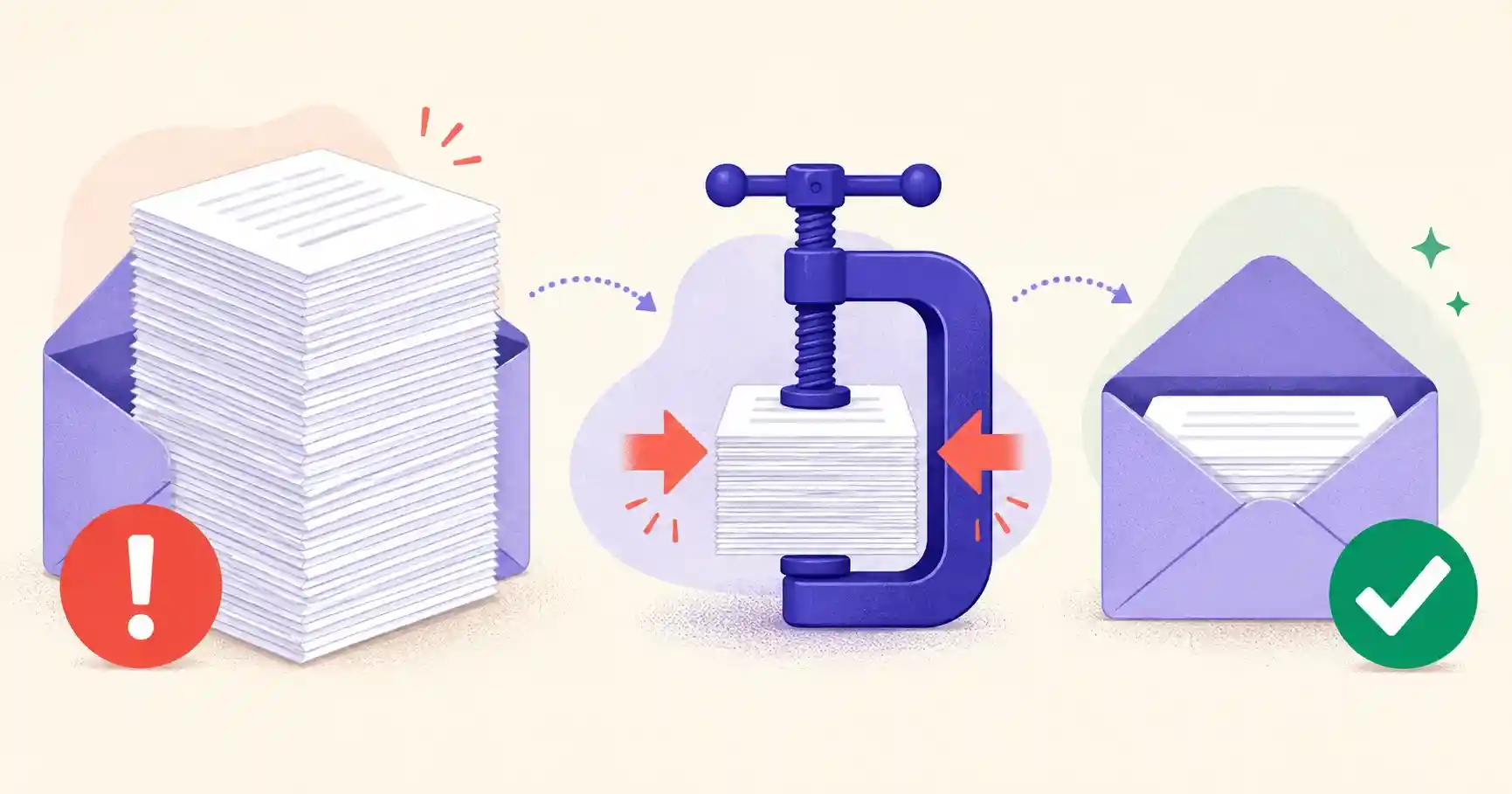
You finish the report, attach it to an email, hit send — and seconds later a red bounce-back appears: "The attachment exceeds the maximum allowed size." It is one of the most common and most avoidable frustrations in professional life. Your carefully prepared proposal, application, or contract is stuck, and the clock is ticking.
The culprit is almost always a bloated PDF. Between high-resolution images, embedded fonts, and scanned pages, a document that looks like a few sheets of paper can balloon to 30, 40, even 50 MB. The fix is straightforward once you understand what is making the file heavy. This guide covers the email limits you are running into, why PDFs get so large, and three reliable ways to shrink them without turning your text to mush.
Email attachment limits you are fighting against
Every email provider caps attachment size, and the caps are lower than most people assume:
- Gmail: 25 MB
- Outlook / Office 365: 20 MB
- Yahoo Mail: 25 MB
- Apple Mail (iCloud): 20 MB via standard attachment
There is a subtlety: these limits apply to the encoded message, and email encoding inflates attachments by roughly a third. A "24 MB" file can breach a 25 MB cap once encoded. And even when a large file squeaks through on your end, the recipient's provider may reject it. The practical target for reliable delivery is well under the stated cap — ideally under 10 MB, and under 5 MB for anything you want to "just work."
Why are PDF files so large?
Understanding the sources of bloat makes shrinking a file far easier:
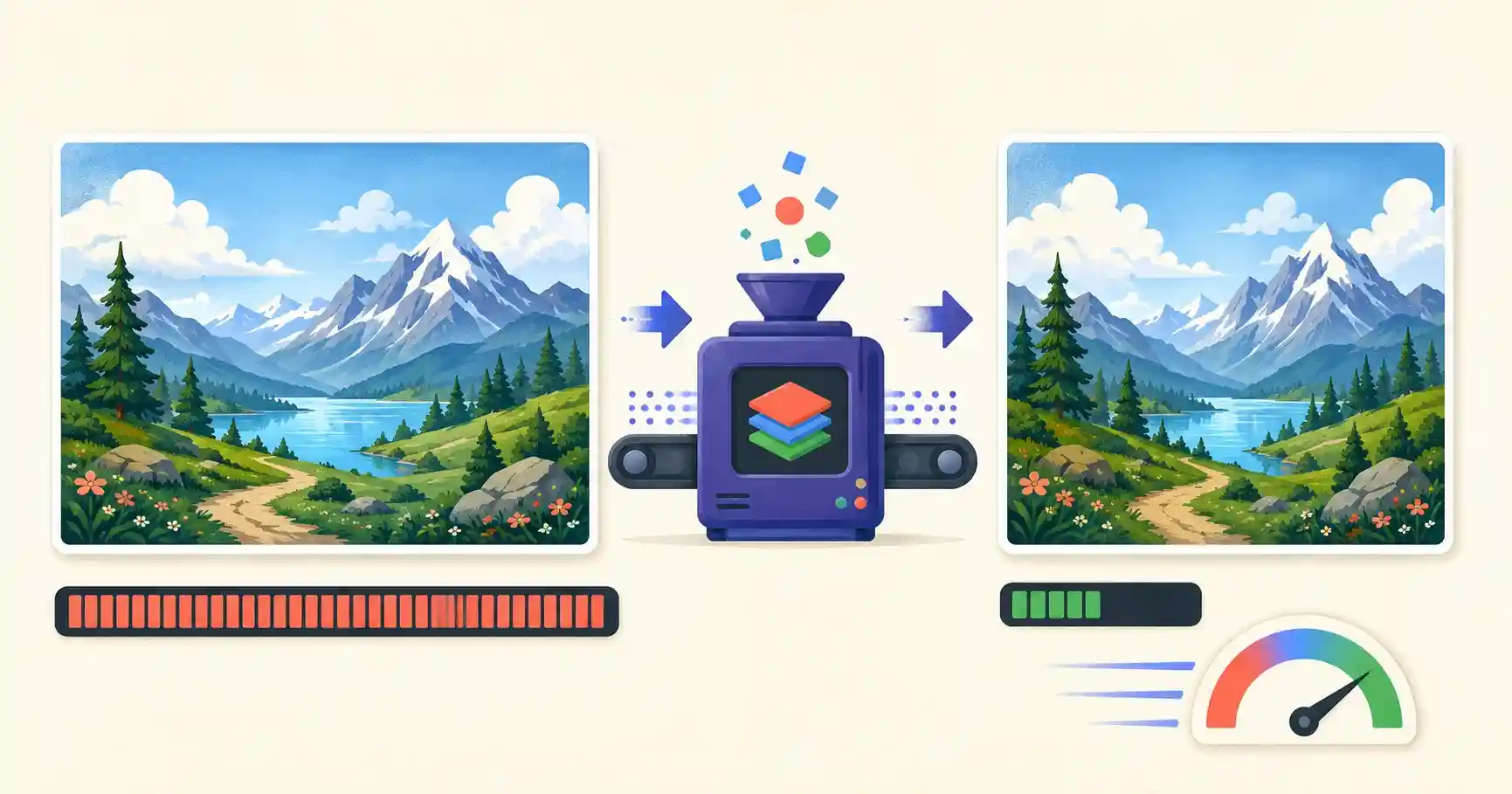
- Uncompressed high-DPI images. Photos from phones or design software are frequently embedded at 300+ DPI (dots per inch). That resolution is meant for print; screens need far less. A single full-page photo at print resolution can weigh several megabytes on its own.
- Unoptimized scanned documents. Scanning turns every physical page into a full-page image. A 20-page scanned contract is really 20 large photos stacked into one file — often the single biggest cause of oversized PDFs.
- Embedded custom fonts. To guarantee your document looks identical everywhere, PDFs can embed entire font families. Several fonts, each with multiple weights, add hidden bulk.
- Redundant metadata and stream data. Editing history, thumbnails, form-field data, and uncompressed internal structure all pile up behind the scenes, especially in files exported from heavyweight design apps.
Target sizes for common workflows
Match your compression effort to the document's purpose:
| PDF use case | Ideal file size |
|---|---|
| Email attachments (applications, invoices) | Under 2–5 MB |
| Web downloads (whitepapers, ebooks) | Under 5–10 MB |
| Print-ready proofs | 20 MB+ (retain 300 DPI) |
Notice the last row: if a file is genuinely going to a professional printer, you want it large and high-resolution. Compression is for screen and email delivery, not for print masters.
Three ways to reduce PDF file size
1. Downsample embedded images
This is the highest-impact move. Screens render crisply at 72–150 DPI, so converting embedded images from print resolution (300 DPI) down to web resolution can cut a file dramatically while looking identical on a monitor. For a photo-heavy document, downsampling alone often gets you under the email limit.
2. Flatten and remove unnecessary layers
Files exported from Illustrator, InDesign, or Acrobat can carry hidden vector paths, interactive form fields, annotation layers, and multiple content streams. Flattening merges everything into a single visible layer and strips the invisible extras. For scanned documents, converting color scans to grayscale — when color is not essential — can also slash size.
3. Use a client-side PDF compressor
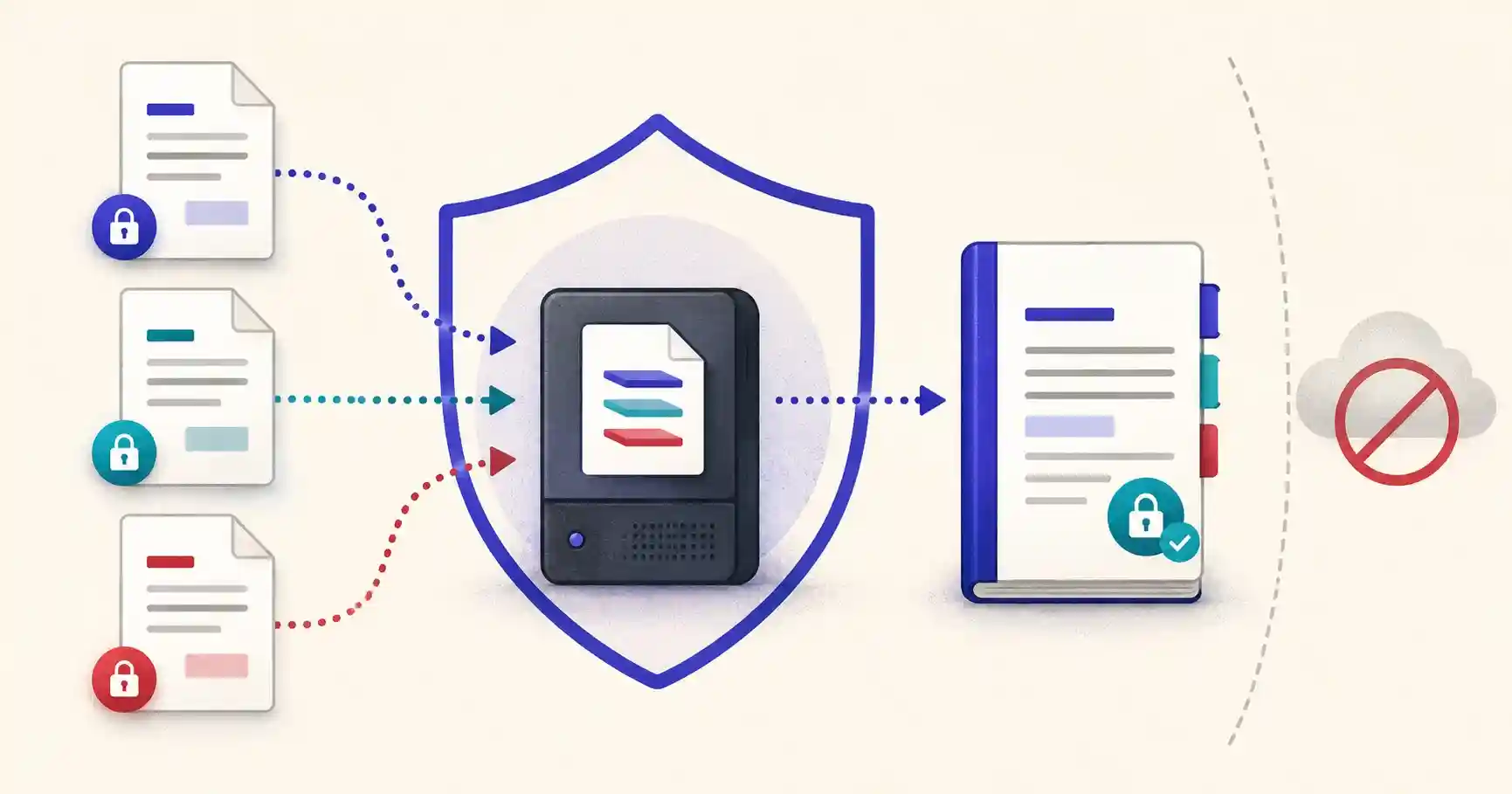
The fastest route is a dedicated compressor that does all of the above automatically: it re-samples images, strips bloated font subsets, removes redundant metadata, and optimizes the internal streams. A browser-based compressor does this locally, so a sensitive contract or financial statement never gets uploaded to a third-party server — an important consideration for exactly the kinds of documents you email.
Will compression ruin my document?
This is the number-one worry, and the answer is reassuring: done correctly, no. Standard PDF compression targets raster images and structural overhead, not the text. Vector text and embedded fonts stay fully vector-based, so they remain razor-sharp at any zoom level. What shrinks is the photographic content — and at sensible settings, that change is invisible at screen size.
The exception is aggressive image downsampling on a photo-centric document: push it too far and photos soften. The remedy is to compress in steps and check the result, rather than jumping straight to the most extreme setting.
What to do when compression is not enough
Sometimes a document is simply too big to email in one piece even after compression. Two strategies help:
- Split it. If the recipient only needs certain pages, extract them into a smaller PDF. There is no reason to send a 60-page appendix when the signature page is what matters.
- Send a subset, then the rest. Break a large document into logical parts and send them across a couple of messages, or merge only the essential sections into a single lean file.
Combining split, merge, and compress gives you a complete toolkit for getting any document under any limit.
Shrink your PDFs safely and instantly
Do not let an arbitrary size cap delay your work. These tools run entirely in your browser, so even confidential files stay on your device.
Get Under the Limit in Seconds
Optimize your PDFs without desktop software — everything runs locally in your browser:
- 🗜️ PDF Compressor: Compress documents to email-safe sizes without sacrificing text readability.
- ✂️ PDF Splitter: Remove unnecessary pages from bloated PDFs to cut the size down.
- 📎 PDF Merger: Combine only the essential, compressed sections into one streamlined file.
🔒 100% client-side privacy: your documents never leave your browser. All optimizations are performed locally on your device with zero server uploads.
Alternatives when a file simply must stay large
Occasionally you genuinely cannot shrink a file enough — a print-ready proof, a high-resolution portfolio, a CAD export. When that happens, do not fight the email limit; route around it:
- Share a link instead of an attachment. Upload the file to cloud storage you already trust and send a link. The recipient downloads on demand, and you avoid mailbox bloat on both ends.
- Split into logical parts. Send a large report as chapters across a couple of messages, clearly labeled, so each attachment stays under the cap.
- Zip it. Compressing a PDF into a ZIP rarely shrinks the PDF itself much (it is already compressed), but it can help when bundling several files together into one attachment.
The right choice depends on who the recipient is and how sensitive the file is — a link is convenient but means the file lives in the cloud, which may not suit confidential documents.
Why "print quality" and "email quality" are different jobs
A recurring mistake is trying to make one file serve both printing and emailing. Print needs 300 DPI images and embedded fonts so the output is crisp on paper; email and on-screen reading need a fraction of that. Keep two versions when it matters: a high-resolution master for printing and a compressed, downsampled copy for sending. Trying to email the print master is what produces those 40 MB monsters in the first place. Compress a copy, never your only high-quality original.
Compression and confidentiality
Because the documents people most often need to shrink — contracts, statements, medical forms, applications — are exactly the ones that should not be uploaded to a random server, the method of compression matters as much as the result. A client-side compressor that works entirely in your browser lets you get a sensitive file under the limit without ever transmitting it to a third party. You get the smaller file and keep the confidentiality, which is the whole point when the attachment is something private.
Frequently asked questions
Will compressing my PDF make the text look blurry?
No. Standard compression targets embedded raster images and structural metadata. Vector text and fonts remain vector-based, so text stays perfectly sharp at any zoom level.
How can I make a scanned PDF smaller?
Run it through a compressor that downsamples full-page scans to around 150 DPI. Converting color scans to grayscale, when color is not required, reduces the size even further.
Why does my PDF exceed the limit even though it says 24 MB?
Email encoding inflates attachments by roughly a third, and the limit applies to the encoded message. Aim well under the stated cap — under 10 MB is a safe target for reliable delivery.
Is it safe to compress confidential PDFs online?
Only with a client-side tool that processes the file in your browser. Avoid services that upload your document to a server for compression, especially for financial or legal files.