

Social Media Safe Zone Checker
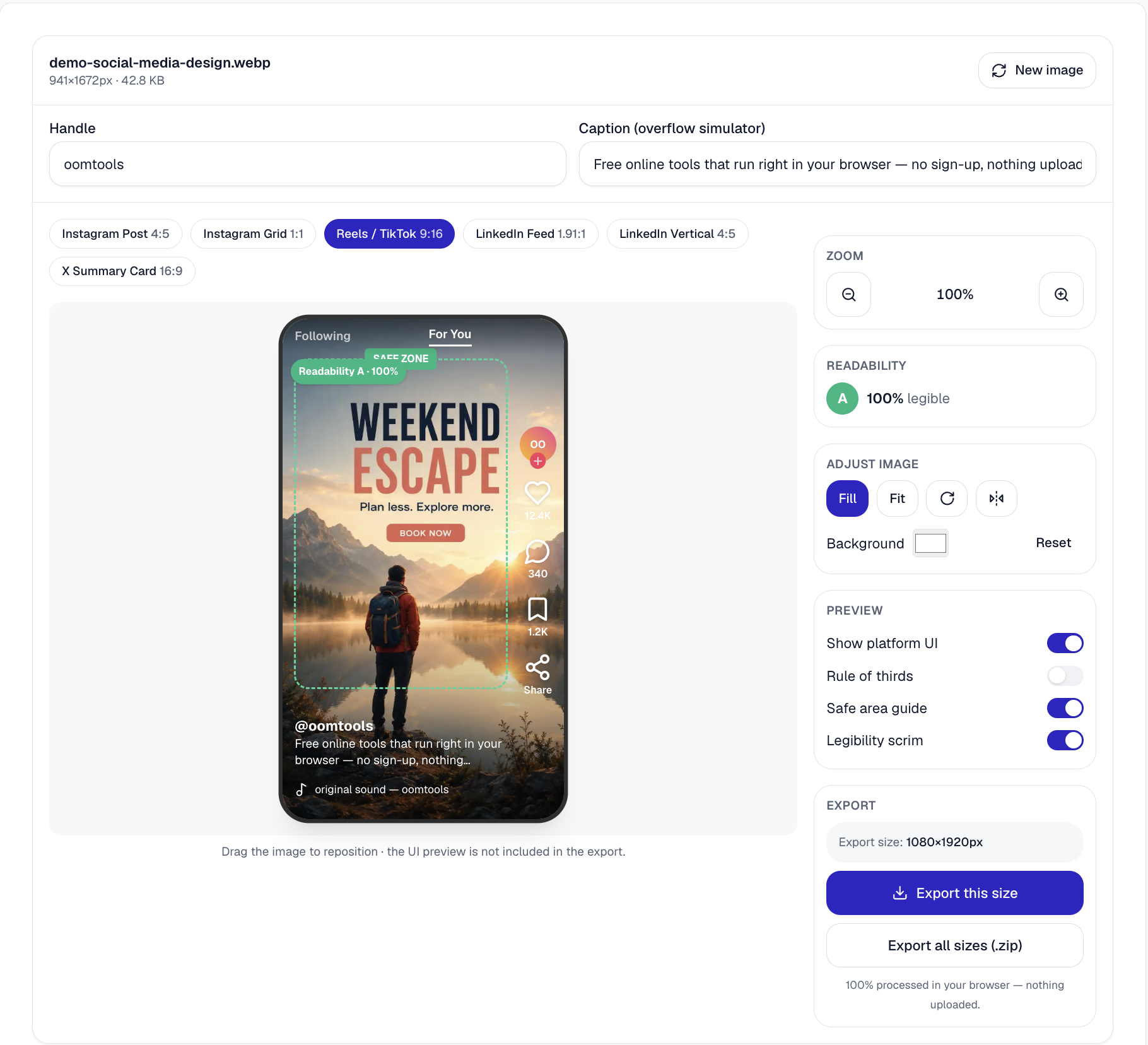
Social platforms display usernames, captions, audio labels and engagement buttons directly over your image. Correct dimensions alone do not stop those interface elements from covering a headline, face, logo or call to action. This checker recreates the likely interface areas for TikTok, Instagram Reels, Instagram feed and LinkedIn placements so you can reposition your design, test realistic usernames and captions, and export a corrected version — entirely in your browser, with nothing uploaded to a server.
- 100% free
- Private & safe
- Runs in your browser
Your files are processed securely in your browser and are not uploaded to our servers.
Why use Social Media Safe Zone Checker & Cropper?
A correctly sized 1080 × 1920 design can still fail after publishing. TikTok or Reels may place engagement buttons over a logo, while a long caption can cover text near the bottom. Previewing these areas before posting helps you catch those conflicts while the design can still be corrected.
- 100% private: files are processed in your browser and never uploaded.
- Completely free, with no account, no watermarks and no usage limits.
- Accepts one JPEG, PNG or WebP image at a time and exports a metadata-free PNG at the selected platform dimensions.
- Upload an image — the editor opens automatically (nothing leaves your device).
- Works on desktop, tablet and phone. Form controls and buttons support keyboard navigation, while image repositioning uses mouse or touch dragging.
What it can do — and its limits
- Live overlays for the 9:16 Reels / TikTok interface, plus Instagram feed (4:5), Instagram grid (1:1) and LinkedIn vertical (4:5) presets.
- Adjustable sample username and caption so you can see how longer captions eat into the bottom of the frame.
- Reposition, zoom, rotate and flip your image behind the overlay, with a dashed safe-area guide and a legibility scrim for text contrast.
- One-click export to the exact preset dimensions (for example 1080×1920 PNG) — processed locally, never uploaded.
How to use Social Media Safe Zone Checker & Cropper
- Upload an image — the editor opens automatically (nothing leaves your device).
- Choose a preset to set the output dimensions. The Reels / TikTok preset adds a detailed interface overlay, while the Instagram, LinkedIn and X presets provide crop-size guides.
- Drag to reposition and use zoom to frame your subject inside the green safe area; toggle any overlay on or off.
- Export the current size, or export every preset at once as a ZIP.
Examples
- Framing a Reel/TikTok so the caption doesn't cover a face.
- Exporting one photo to all six platform sizes in a single ZIP.
- Checking a caption doesn't overflow with the overflow simulator.
Worked example
Input
A 1080×1920 promo with the headline “50% OFF” placed 90px from the bottom and the logo in the bottom-right corner.
Output
The checker reveals that the headline overlaps the bottom caption zone and the logo sits beneath the action rail. Because both elements are embedded in the image, return to the original design editor, move them into the safe area, export the corrected design and check it again.
The demo image button loads a similar sample so you can see the danger zones without uploading a file.
Supported formats & limits
- Accepts one JPEG, PNG or WebP image at a time and exports a metadata-free PNG at the selected platform dimensions.
Safe-zone measurements used by this checker
The following measurements come directly from the tool’s overlay constants. They are conservative design guides, not official or permanent platform boundaries. The Reels / TikTok preset provides the detailed interface simulation; the Instagram feed, Instagram grid, LinkedIn and X presets are crop-size guides.
| Preset | Canvas | Top overlay | Bottom overlay | Right rail |
|---|---|---|---|---|
| Reels / TikTok (9:16) | 1080×1920 | 8% (≈154px) | 26% (≈499px) | 20% (≈216px) |
| Instagram feed (4:5) | 1080×1350 | title-safe 5% margin | title-safe 5% margin | — |
| Instagram grid (1:1) | 1080×1080 | centre 1:1 crop guide | centre 1:1 crop guide | — |
| LinkedIn vertical (4:5) | 1080×1350 | title-safe 5% margin | title-safe 5% margin | — |
Limitations
- Safe zones are conservative approximations, not official platform specifications.
- Interfaces differ by device, operating system and app version.
- Paid ads may use different overlays from organic posts.
- Longer captions occupy more space; the bottom overlay can grow beyond the default.
- The checker accepts still images (JPEG, PNG, WebP), not video files.
- Text baked into an image cannot be repositioned separately from the picture.
- The checker previews layout only — it does not publish content to any platform.
- Very large images can use significant device memory while editing.
- For important campaigns, still test the final post on a real device.
Common problems & fixes
Text gets covered by the caption or buttons.
Keep important text inside the green safe zone and toggle the platform UI overlay on to check.
Image looks stretched.
Use Fill to cover the frame (cropping edges) or Fit to show the whole image with a background — don't force a mismatched ratio.
Sources & references
Last verified August 2026.
Frequently asked questions
Are the safe zones exact?
They're careful approximations of where each app places its buttons, captions and crop edges. Apps update their UI, so treat the guides as a reliable starting point, not pixel-perfect.
Do the coloured overlays appear in my download?
No — the export contains only your cropped image at full resolution. The green safe area and red danger zones are preview guides only.
Is my image uploaded anywhere?
No. Everything is processed locally in your browser with HTML5 Canvas, so your image never leaves your device.