Tools used in this post
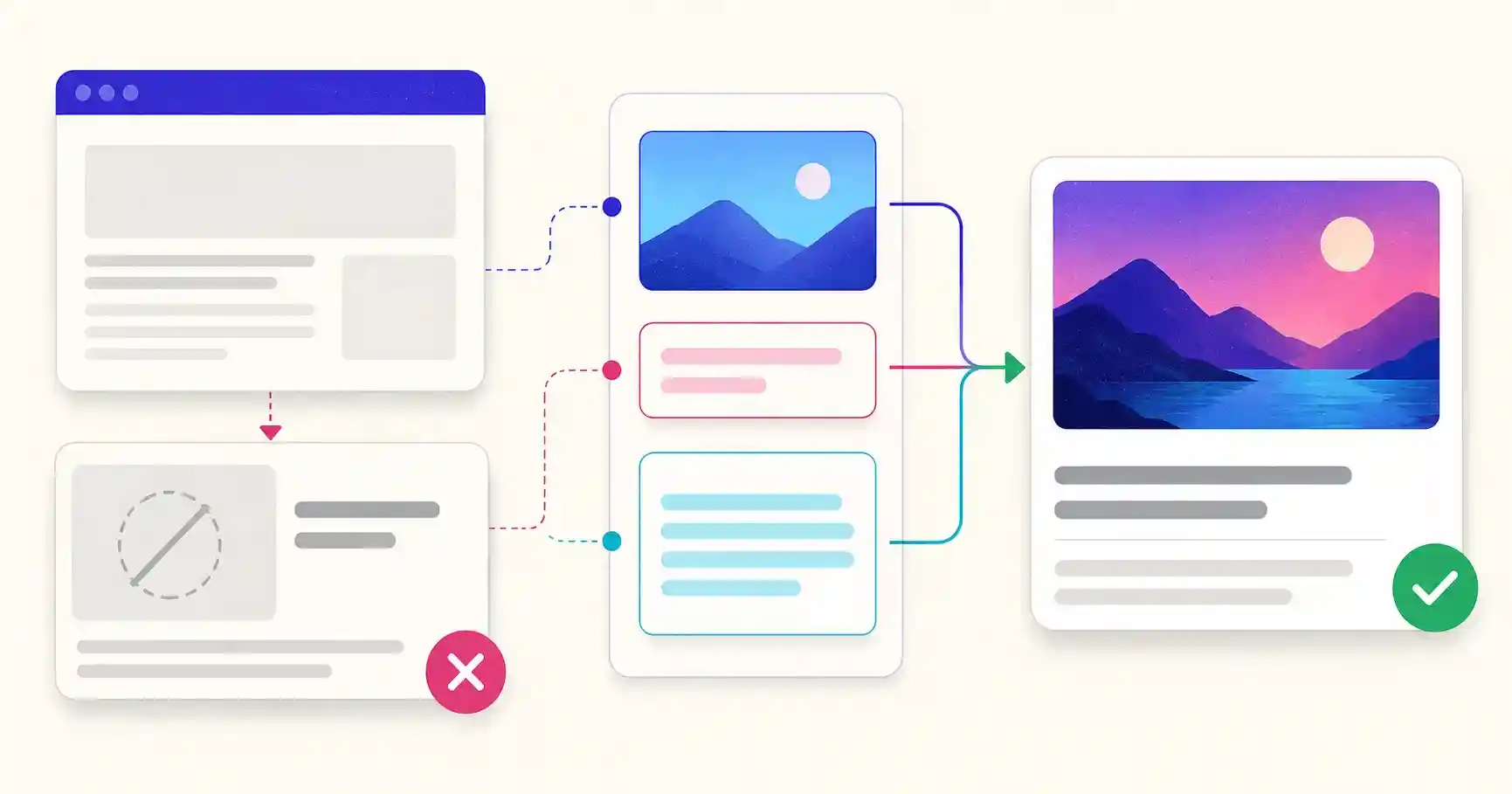
You publish a great article, paste the link into a WhatsApp group, a LinkedIn post, or an X thread — and the preview is a disaster. A blank grey box where the image should be, a title that just says "Home," or a snippet pulled from your cookie banner. A missing or inaccurate preview can make a shared link less informative and less visually compelling. A frequent culprit is a set of missing or misconfigured Open Graph (OG) meta tags.
Open Graph tags are small snippets of code in your page's <head> that tell social platforms which image, title, and description to show when your link is shared. Common causes of a broken preview include missing or invalid Open Graph tags, inaccessible image URLs, crawler restrictions and cached preview data. This guide explains how OG tags work, lists the exact tags every page needs, gives you the correct image dimensions, and shows how to test and fix your preview cards.
Quick answer: Open Graph meta tags live in your page
<head>and tell social platforms which title, description and image to show for a shared link. The official protocol requiresog:title,og:type,og:imageandog:url;og:descriptionis optional but strongly recommended. Add matchingtwitter:tags to control the card on X.
Fill in the fields below to generate a complete, escaped set of Open Graph and X (Twitter) Card tags, with a live preview of how the card will look:
Why Open Graph tags matter for traffic
Social engagement is overwhelmingly visual. A link that unfurls into a bold thumbnail, a clear headline, and a tempting description occupies more space in the feed and signals credibility. A bare text link does neither. A complete preview gives people more information about the destination and can make the shared link more visually compelling.
Required vs recommended Open Graph tags
The official Open Graph protocol defines exactly four required properties. og:description is not required, but it is strongly recommended because it fills the snippet under your title. Whenever you set an image, the protocol also recommends adding og:image:alt.
| Tag | Status | What it does |
|---|---|---|
og:title |
Required | The headline of the card (keep under ~60 characters). |
og:type |
Required | Content type: website, article, product, profile. |
og:image |
Required | Absolute https:// URL of the preview image. |
og:url |
Required | The canonical URL of the page being shared. |
og:description |
Recommended | The snippet under the title (about 100–200 characters). |
og:image:alt |
Recommended | Accessible description of the image; add it whenever og:image is set. |
og:image:width / :height |
Recommended | Help platforms understand the image proportions before processing it. |
og:site_name |
Recommended | Your site or brand name. |
og:locale |
Optional | Content language, e.g. en_US. |
Complete, production-ready example
Here is a full set for a typical article, including image dimensions, alt text and matching X (Twitter) Card tags. Paste it inside <head>:
<meta property="og:title" content="How to Crop Images for Social Media Safe Zones">
<meta property="og:type" content="article">
<meta property="og:url" content="https://example.com/blog/social-safe-zones">
<meta property="og:image" content="https://example.com/og/social-safe-zones.png">
<meta property="og:image:width" content="1200">
<meta property="og:image:height" content="630">
<meta property="og:image:alt" content="Phone showing safe-zone overlays on a vertical design">
<meta property="og:description" content="Keep headlines, logos and CTAs clear of platform UI on TikTok, Reels and Shorts.">
<meta property="og:site_name" content="Example">
<meta property="og:locale" content="en_US">

<meta name="twitter:card" content="summary_large_image">
<meta name="twitter:title" content="How to Crop Images for Social Media Safe Zones">
<meta name="twitter:description" content="Keep headlines, logos and CTAs clear of platform UI on TikTok, Reels and Shorts.">
<meta name="twitter:image" content="https://example.com/og/social-safe-zones.png">
<meta name="twitter:image:alt" content="Phone showing safe-zone overlays on a vertical design">
Always use absolute https:// URLs for og:url and og:image — relative paths are a common reason images fail to appear.
Recommended image dimensions
The single most common OG failure is a badly sized image — cropped awkwardly, blurry, or rejected for being too large. Use these standards:
| Platform | Recommended dimensions | Aspect ratio |
|---|---|---|
| Facebook / LinkedIn / WhatsApp | 1200×630 px | 1.91:1 |
| X (summary card, large image) | 1200×628 px | ~2:1 |
| Minimum resolution | 600×315 px | Use a compressed JPG/PNG/WebP, ideally < 1 MB |
A practical tip: design one 1200×630 image that works everywhere, and compress it so it loads fast — a large image takes longer for social crawlers to download and process and may exceed a platform's limits.
The caching trap (and how to escape it)
Here is the scenario that drives people mad: you fix your OG tags, re-share the link, and the old broken preview still appears. That is caching, not a bug. Facebook, LinkedIn, and others store a copy of your preview card for days to avoid re-scraping your page on every share. Editing your tags does not automatically clear that cache.
The fix is to force a re-scrape using each platform's official debugging tool — the Facebook Sharing Debugger and the LinkedIn Post Inspector. Paste your URL, and the tool fetches the current tags, clears the cached version, and shows you exactly what each field resolves to. Always run a new page through a debugger once before promoting it heavily.
Open Graph vs Twitter Cards
You may see twitter: tags alongside og: tags. Open Graph was created by Facebook; Twitter Cards were created by X. The good news is that X falls back to Open Graph tags when specific Twitter Card tags (twitter:card, twitter:title) are absent. So a solid set of Open Graph tags covers the vast majority of platforms, and you only need to add Twitter-specific tags if you want to fine-tune the card type on X.
Generate and preview your meta tags for free
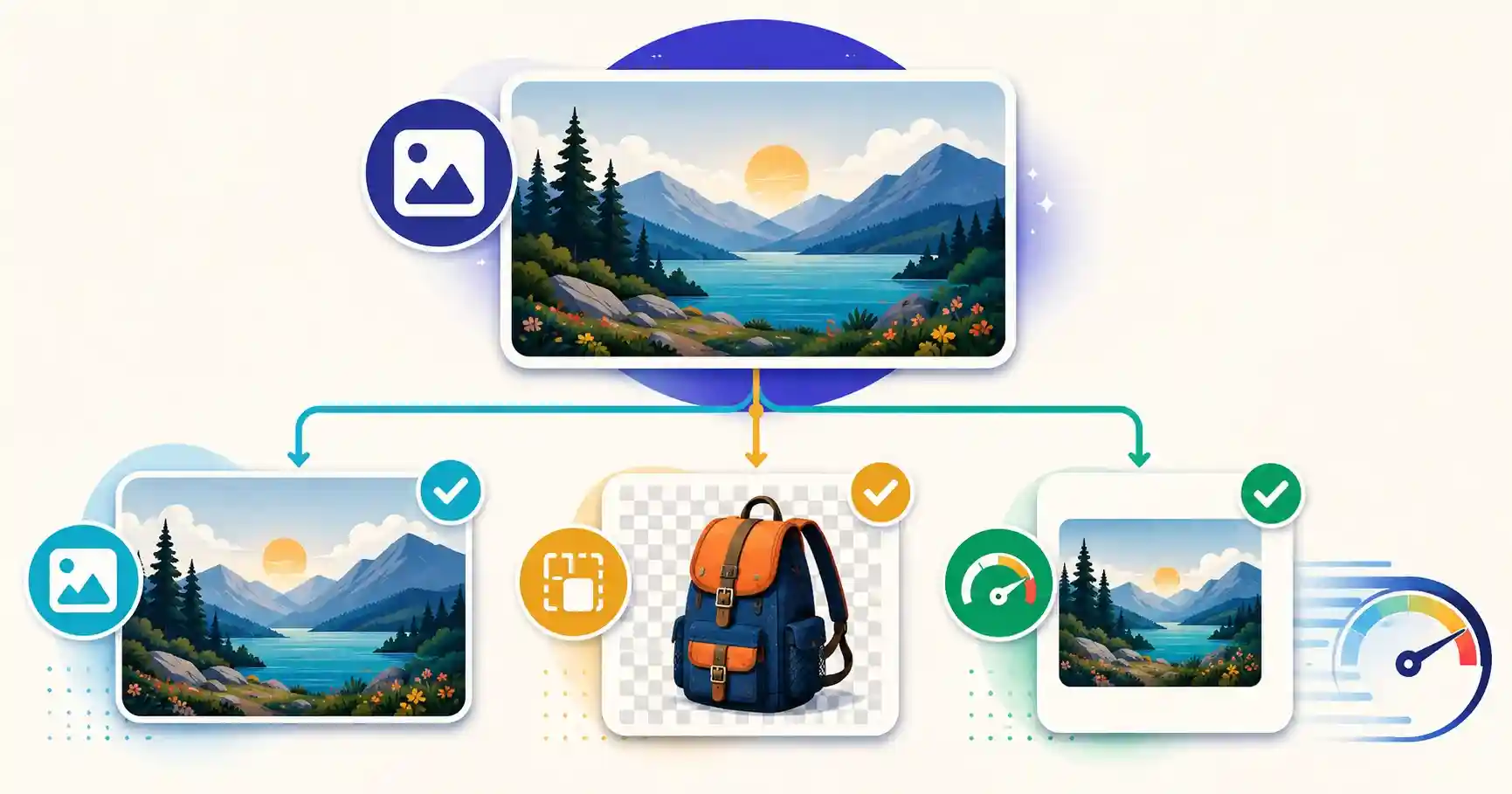
You do not have to hand-write and hand-check every tag. Generate a complete, correct set from a form, verify your image stays inside social safe zones, and compress it for fast loading — all in your browser.
Fix Your Link Previews in Minutes
Create and test your social markup without touching production first:
- 🏷️ Open Graph Meta Tag Generator: Fill a quick form to generate complete Open Graph and Twitter Card tags ready to paste.
- 📱 Social Media Safe Zone Checker: Verify your preview image keeps text and logos inside platform safe zones.
- 🗜️ Image Compressor: Compress heavy og:image files under 1 MB for lightning-fast preview rendering.
🔒 100% client-side privacy: your titles, metadata, and asset links are processed entirely inside your web browser.
Designing an og:image that earns clicks
The image is what stops the scroll, so treat it as a mini advertisement rather than an afterthought. A few principles consistently outperform:
- Put a short headline on the image itself. Feeds often truncate the text title, so baking 3–6 words of value onto the graphic helps your message land even when the title is shortened.
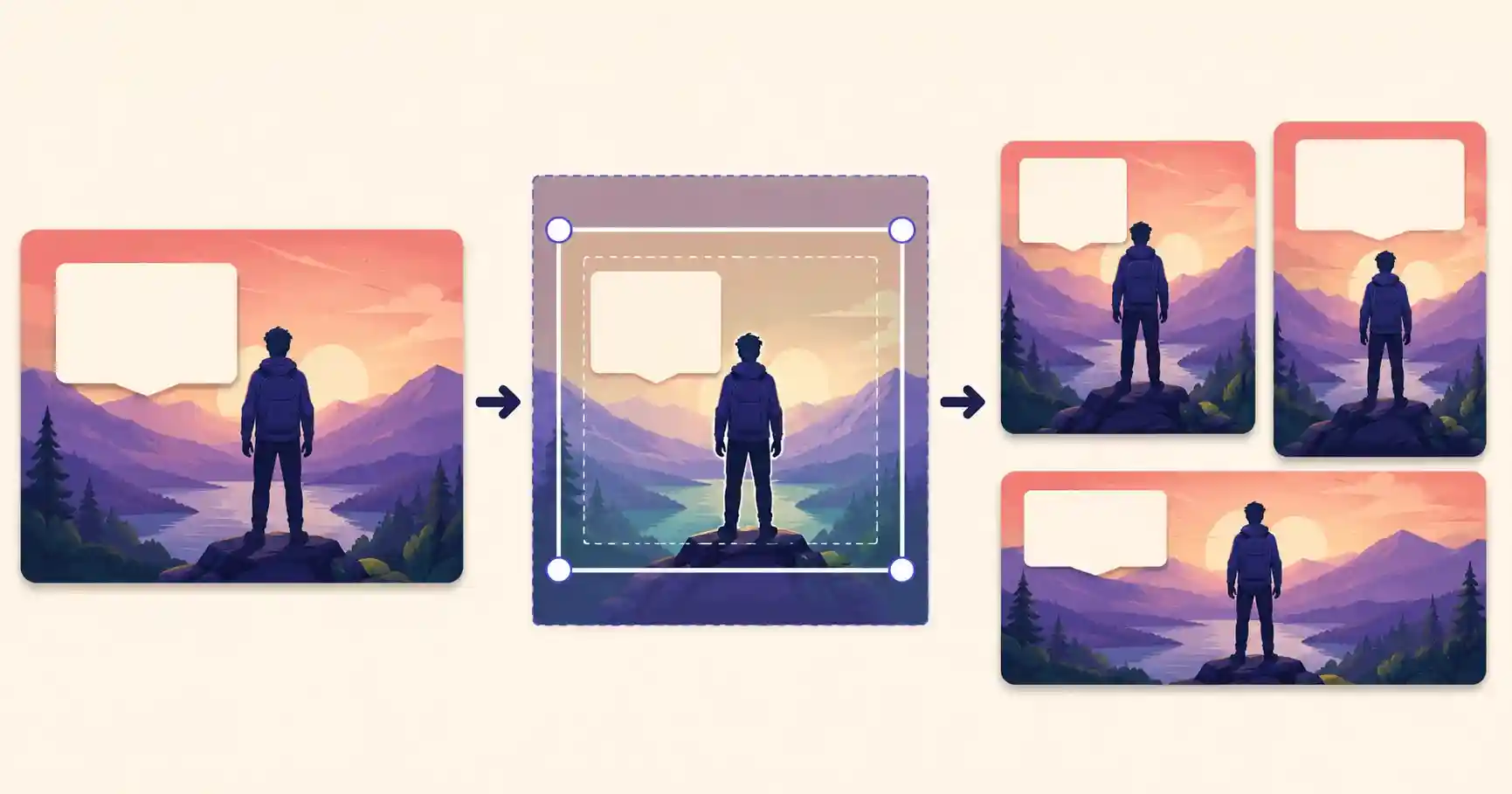
- Keep text away from the edges. Platforms crop preview images slightly differently, so keep important text within the central ~80% — the same safe-zone thinking used for social video.
- Use high contrast and a large, legible font. Previews are small on mobile; thin grey text on a busy photo disappears.
- Stay on-brand. A consistent color and logo placement makes your links recognizable as they spread across feeds.
A strong og:image works for you whenever a platform shows your preview, so investing ten minutes in a reusable template pays off across future shares. Keep in mind that platforms can still crop, modify or omit the image depending on the placement.
Per-page tags beat one site-wide default
A frequent mistake is setting a single Open Graph image and title for the whole site. That means every shared link — every article, every product — unfurls with the same generic homepage card, wasting the chance to show relevant, clickable content. Generate unique og:title, og:description, and ideally og:image for each important page. The title and description should match the page's actual content (and can differ from the SEO <title> if a punchier social version works better). Dynamic sites can template this automatically from each page's own metadata.
Testing before you promote
Never assume your tags are correct — verify them. Before pushing a link to your audience, run it through the platform debuggers (Facebook Sharing Debugger, LinkedIn Post Inspector) and check the preview on X. This does three things: it confirms every field resolves correctly, it surfaces a too-large or wrongly-sized image, and it primes the platform cache so the first real share already shows the right card. Ninety seconds of testing prevents the far more visible embarrassment of a broken preview on a post you have already promoted.
Why OG tags must be in the initial HTML <head>
Social scrapers — Facebook, LinkedIn, Slack, WhatsApp and others — fetch your raw HTML and read the <head>. They do not run JavaScript. If your tags are injected client-side after the page loads, most scrapers never see them and your preview falls back to guesswork. Render Open Graph tags on the server so they are present in the very first HTML response. This is exactly why a client-only single-page app often has broken previews until it adds server-side rendering or pre-rendering for its meta tags.
Open Graph in Next.js
The App Router builds these tags for you from the metadata export — no manual <meta> tags required:
export const metadata = {
  title: "How to Crop Images for Social Media Safe Zones",
  description: "Keep headlines, logos and CTAs clear of platform UI on TikTok, Reels and Shorts.",
  openGraph: {
    title: "How to Crop Images for Social Media Safe Zones",
    description: "Keep headlines, logos and CTAs clear of platform UI on TikTok, Reels and Shorts.",
    type: "article",
    url: "https://example.com/blog/social-safe-zones",
    siteName: "Example",
    locale: "en_US",
    images: [{
      url: "https://example.com/og/social-safe-zones.png",
      width: 1200,
      height: 630,
      alt: "Phone showing safe-zone overlays on a vertical design",
    }],
  },
  twitter: {
    card: "summary_large_image",
    title: "How to Crop Images for Social Media Safe Zones",
    description: "Keep headlines, logos and CTAs clear of platform UI on TikTok, Reels and Shorts.",
    images: [{
      url: "https://example.com/og/social-safe-zones.png",
      alt: "Phone showing safe-zone overlays on a vertical design",
    }],
  },
};
Because it runs on the server, the tags land in the initial HTML where scrapers can read them.
Open Graph in WordPress
WordPress does not output Open Graph tags by default. The usual fix is an SEO plugin — Yoast SEO, Rank Math or All in One SEO — which adds per-post og: and twitter: tags and lets you set a fallback social image. Set a site-wide default image, then override the image, title and description on important posts. After editing them, clear any caching plugin and re-run the page through a debugger.
Troubleshooting
| Symptom | Likely cause | Fix |
|---|---|---|
| Old preview still shows | Platform cached the card | Re-scrape in the Meta Sharing Debugger / LinkedIn Post Inspector |
| No image appears | Relative URL, non-https, or blocked/oversized image |
Use an absolute https:// URL to a public, reasonably sized image |
| Wrong title or description | Tags injected by JavaScript | Render the tags server-side so they are in the initial HTML |
| Image is cropped oddly | Aspect ratio isn't 1.91:1 | Use a 1200×630 image and keep key content centered |
| Same card on every page | One site-wide default | Set a unique og:title and og:image per page |
Official testing tools
Verify every important page before you promote it:
- Meta Sharing Debugger — fetches your tags, clears Facebook's cache and shows what each field resolves to.
- LinkedIn Post Inspector guidance — how LinkedIn reads and refreshes your card.
- Post the link into a private X post to confirm the card before sharing it publicly.
Sources and verification
- The Open Graph protocol (ogp.me) — the specification, including the required properties and structured image properties like
og:image:alt. - Meta Sharing Debugger
- LinkedIn Post Inspector guidance
Last verified: August 2026.
Key takeaways
- Open Graph tags control the image, title, and description shown when your link is shared.
- The protocol requires
og:title,og:type,og:imageandog:url; addog:description(recommended) andog:image:alt— set uniquely per page. - Use a 1200×630 image, keep it under ~1 MB, and put key text in the center safe zone.
- Platforms cache previews for days; force a refresh with the official debuggers after changes.
- A strong Open Graph set covers X too, since Twitter falls back to it when Twitter Cards are absent.
Frequently asked questions
Why doesn't Facebook update my preview image after I change the OG tags?
Facebook and LinkedIn cache preview cards for several days. Force an immediate refresh by running your URL through the Facebook Sharing Debugger or LinkedIn Post Inspector, which clears the cache and re-scrapes your page.
What is the difference between Open Graph tags and Twitter Cards?
Open Graph was created by Facebook; Twitter Cards by X. However, X automatically falls back to Open Graph tags when Twitter-specific tags are missing, so a good OG set covers almost everything.
What size should my og:image be?
1200×630 pixels (a 1.91:1 ratio) is the safe standard across Facebook, LinkedIn, and WhatsApp. Platform file-size limits vary. For reliable and faster processing, use a compressed JPG, PNG or WebP image and aim for less than 1 MB when image quality allows.
Do Open Graph tags help SEO directly?
Open Graph tags are not a confirmed direct Google ranking factor. Their main benefit is controlling how links appear when shared, which can improve presentation and referral traffic without guaranteeing higher rankings.